Files and folders
In Ricepad you can load, save, import and export documents organized by files and folders.
Documents in Ricepad
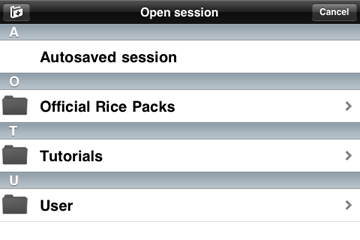
The main documents folder contains three subfolders:
- Official Rice Packs, containing the official Ricepad's extension packs that you can download to extend your sound library.
- Tutorials, containing the tutorial lessons.
- User, that is the folder where you can manage your own files.
As described in the Sessions paragraph, two special sessions can also be found in the root folder, namely "Autosaved session" and "Current session".
File browser
Every time you need to load or save a new file, you will use the file browser (see picture).
Depending on its purpose, the file browser will show only the suitable files accordingly. For example,
if you want to open a file in the File Player, the browser will show only the audio files that you can load.
Normal folders are represented by a black folder icon. Sessions, when seen as folders (that is when loading audio files), are represented by an "S"-labelled black folder icon.
Some modules support copy and paste operations, sharing the pasteboard also with other Intua-compatible applications like Beatmaker. You will be prompt to name a pasted clip as it will be saved to a file in the current session.
File transferring
You can transfer files to and from a computer in different ways:
- iPhone Explorer is a free application for Windows and Mac OS that lets you easily manage the files in your iDevice when its connected to your computer with the USB cable. This method is recommended as it supports bulk transfers with high-speed. Just open the application and browse to [your iDevice's name]/Apps/Ricepad/Documents/User or any subfolder. You can drag and drop files and folders from your computer to iPhone Explorer or vice-versa. To move an item in your iDevice you'll have to manually export it and import it again to another location. Renaming is straightforward. (Note: the creator of Ricepad declines any responsibility about any possible issue that may occur with iPhone Explorer, which usage here is only suggested).
- with iTunes File Sharing you have access to Ricepad's User folder through iTunes. To find it, connect your iDevice with the USB cable to your computer, select its name in the left pane in iTunes, click on the Apps tab and select "Ricepad" under the File Sharing's Apps list. You can drag the User folder from the "Ricepad Documents" pane to your computer to export all the documents. In order to import new documents you must first zip them and then drag the zip archive to the "Ricepad Documents" pane. If Ricepad is running, the archive will be immediately extracted into the User folder. Otherwise, this operation will be performed next time you open Ricepad. The importing operation will never overwrite any existing file (any file name collision will be resolved by appending an increasing index to the file name). This method also lets you delete the entire User folder, directly from iTunes, but not a particular subfolder.
- a WiFi connection can be established by pushing the button on the top-left corner of the first page of the file browser of Ricepad. A message will appear, indicating the URL to open with your web browser of your remote computer. From there you can upload and download documents, and create new subfolders.
File sharing
You can share your recordings with SoundCloud or through the Mail app. In order to share a file, swipe horizontally on the corresponding row in the file browser and tap the "Share" button that will appear. Note that the file must be placed under the User folder or the Current session folder.
- SoundCloud is a great platform that lets you share, browse, download and listen to audio files. Registering for the basic account is free, so why not trying it? By selecting this option for sharing a file in Ricepad for the first time, you will be prompt to the SoundCloud's login page, in order to connect your SoundCloud account with Ricepad app. This will enable Ricepad to upload new files on your SoundCloud page. Please note that for your safety your credentials will be sent only to SoundCloud's servers (this technology is called oAuth). You can disconnect Ricepad from SoundCloud (i.e. deauthorizing it from uploading files) from your SoundCloud's Settings page, under the Connections tab.
Once connected to SoundCloud, you'll be prompted to type a title, a description and some tags for your audio file. Tags are normally separated by spaces. If you want to insert a tag composed by more than one word, like "drum and bass", you have to write it with double quotes. You can also specify whether you want to make the file publicly visible and, if so, to add it on Ricepad group, a place in SoundCloud where Ricepad users can share their creations.
- Mail is your default mailing app. By selecting this option your file will be attached to a new mail.
Note that with both methods you will actually upload a compressed (.m4a) version of the file. While the file is being compressed the audio is paused.